Org Chart Studio Team · December 14, 2025
How to Create an Org Chart in Keynote (+ Free Template)

You're building a presentation in Keynote and need an org chart. If you're coming from PowerPoint, you might look for something like SmartArt—a menu where you pick "Organization Chart" and start typing names.
Keynote doesn't have that. There's no built-in organizational chart feature.
What Keynote does have: shapes, text, and connection lines that stay attached when you move things around. You build the org chart manually, one box at a time. It takes longer than SmartArt, but the connection lines are genuinely useful—they follow your shapes when you rearrange the layout, so you're not constantly redrawing.
For a small team in a presentation, this works fine. Here's how to build an org chart in Keynote, step by step.
How to create an org chart in Keynote
You'll build this using three elements: shapes for boxes, text inside those shapes, and connection lines to show reporting relationships.
Step 1: Start with a blank slide
Open Keynote and create a new presentation, or navigate to the slide where you want your org chart.
A blank slide works best—it gives you the most space to work with. If your theme includes text placeholders, you can delete them or work around them.
Step 2: Add your first shape
Click the Shape button in the toolbar (or go to Insert > Shape).
Choose a rectangle or rounded rectangle. Click and drag on the slide to draw the box. This will be your first person—typically the CEO or department head at the top of the chart.
Don't worry about size yet. You can resize it after you've added text.
Step 3: Add text to the shape
Click inside the shape and start typing. Enter the person's name.
To add a second line for their title, press Return (not Option+Return) to create a new line, then type the title.
Example:
Sarah Chen
Chief Executive Officer
You can format the text using the Format panel on the right:
- Select the name and make it bold
- Select the title and make it slightly smaller or a lighter color
- Center the text if it isn't already
Step 4: Style the shape
With the shape selected, use the Format panel (click Style tab) to adjust:
- Fill — Set the background color. A solid color works well for org charts.
- Border — Add an outline or remove it entirely.
- Shadow — A subtle shadow can add depth, but keep it light.
Once you have one box styled the way you want, you'll duplicate it for consistency.
Step 5: Duplicate and position boxes
Select your styled shape and duplicate it:
- Command+D creates a copy
- Or copy/paste with Command+C / Command+V
Drag the duplicate into position below and to the side of the original. This will be someone who reports to the first person.
Repeat until you have boxes for everyone in your org chart. Arrange them roughly in hierarchy—top person at the top, their direct reports below, and so on.
Alignment tip: Select multiple boxes (Shift+click each one), then use Format > Arrange > Align Objects to line them up. "Align Middle" lines up boxes horizontally. "Distribute Horizontally" evens out spacing.
Step 6: Connect boxes with lines
This is where Keynote's connection lines shine.
Select two shapes you want to connect—click the first one, then Shift+click the second.
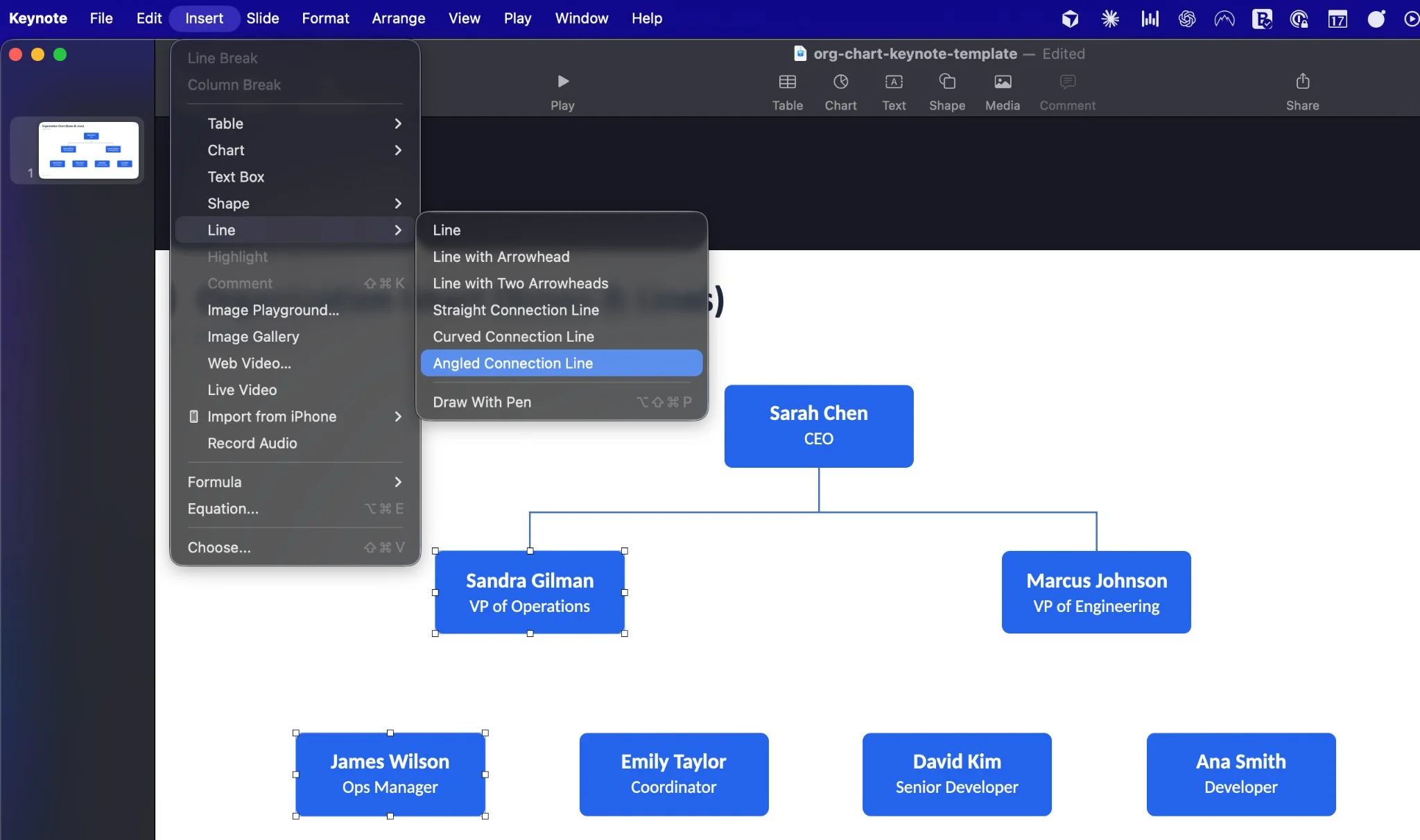
Go to Insert > Line and choose one of three connection types:
- Straight Connection Line — A direct line between shapes
- Curved Connection Line — An arced line
- Angled Connection Line — Creates right-angle bends (best for org charts)

For org charts, Angled Connection Line usually looks cleanest. It creates a line that goes straight down from the manager, then turns to reach the direct report.
The line automatically attaches to both shapes. If you move either shape, the line follows.
Step 7: Adjust the connection line path
After adding a right-angle connection line, you'll see a green dot on the line. This controls where the line bends.
Drag the green dot to adjust the path. For org charts, you typically want the line to:
- Go straight down from the manager's box
- Turn horizontally
- Turn again to reach the direct report
You can also change which side of the shape the line connects to. Click and drag the line's endpoint to a different edge of the shape—the line will snap to connection points on the shape's edges.
Step 8: Style your connection lines
Select a connection line and use the Format panel (Style tab) to adjust:
- Stroke — Change the line color and thickness
- Endpoints — Usually you want no arrows for org charts
- Line type — Solid works best; dashed can indicate dotted-line relationships
For a clean look, use a neutral gray that's lighter than your box borders. Match line weight across all connections.
Step 9: Add remaining connections
Repeat the connection process for each reporting relationship:
- Select the manager's box and the direct report's box
- Insert > Line > Angled Connection Line
- Adjust the green dot to position the bend
- Style the line to match the others
Tip: After styling one line the way you want it, select it, go to Format > Advanced > Define Line Style as Default. New lines will use this style automatically.
Step 10: Group related elements (optional)
Once your chart is complete, you might want to group the entire thing so it moves as one unit.
Select all shapes and lines (Command+A while on the slide, or drag to select everything). Then go to Format > Arrange > Group.
Now you can move, resize, or duplicate the entire org chart at once.
Tips for better Keynote org charts
A few things that save time:
Style one box completely before duplicating. Get the fill color, border, text formatting, and size right on one box. Then duplicate it. This keeps your chart consistent without formatting each box individually.
Use the Format panel's Arrange tab. The alignment and distribution tools are essential. Select a row of boxes, then "Align Middle" and "Distribute Horizontally" to get them evenly spaced.
Set a default line style. After formatting one connection line, go to Format > Advanced > Define Line Style as Default. Every new line will match.
Keep boxes the same size. Nothing looks more amateur than org chart boxes of random sizes. If you need to fit longer names or titles, resize all boxes rather than just the one.
Right-angle lines over straight lines. Straight connection lines work for simple two-level charts, but right-angle lines look cleaner when you have multiple levels and branches.
Exporting your Keynote org chart
Once your org chart looks right, you have several export options.
Export as image:
- Select all elements of your org chart
- Go to Edit > Copy (Command+C)
- Open Preview (or another image app)
- Go to File > New from Clipboard
- Save as PNG or JPEG
Export the slide:
- Go to File > Export To > Images
- Choose PNG or JPEG
- Select whether to export all slides or a range
- The slide exports at presentation resolution
Export to PDF:
- Go to File > Export To > PDF
- Choose image quality
- Save
Export to PowerPoint:
- Go to File > Export To > PowerPoint
- The .pptx file can be opened in PowerPoint or Google Slides
- Connection lines and shapes usually transfer well
Where Keynote org charts work well
Deciding to create an org chart in Keynote makes sense when:
- The chart lives in a Keynote presentation. No exporting, no format conversion—it's already where you need it.
- You have under 20 people. Manual box creation is manageable at this scale.
- The structure is stable. You won't need to reorganize frequently.
- You want design control. Keynote's shapes and styling give you more visual flexibility than template-based tools.
For a team slide in a pitch deck or an "About Us" section in a company presentation, Keynote handles it fine.
Where Keynote org charts get difficult
The manual approach shows its limits in specific situations:
No auto-layout. Every box position is manual. Add someone new and you'll spend time nudging boxes and re-routing connection lines to make room.
No hierarchy tools. There's no "Add Direct Report" or "Promote/Demote" function. Adding someone means: create a new box, position it, create a connection line, adjust the line path, realign surrounding elements.
No data import. If you have employee data in a spreadsheet, you're typing every name manually. There's no CSV import, no paste-from-Excel that preserves structure.
Rearranging is tedious. Moving someone to a new manager means: delete the old connection line, create a new one, reposition the box, adjust surrounding layout. For frequent reorgs, this adds up.
Large charts don't fit. Past 20-25 people, you'll struggle to fit everyone on one slide legibly. Keynote doesn't have a way to create linked slides or drill-down views.
None of these are bugs—they're just the boundaries of using presentation software for diagrams. Keynote is designed for slides, not org charts.
Using your Keynote data elsewhere
If you've built an org chart in Keynote and want to use that data in another tool, you'll need to extract it manually:
- Open a spreadsheet (Numbers, Excel, Google Sheets)
- Create columns: Name, Title, Manager
- Work through your Keynote chart, entering each person
- Save as CSV
Now you have portable data that dedicated org chart tools can import.
Keynote org chart template (free download)
If you'd rather skip the setup, we've created a free Keynote org chart template to speed up your starting point:
Download Keynote Org Chart Template (.key)
This template includes:
- Pre-styled shapes with professional formatting
- Sample 7-person hierarchy across three levels
- Right-angle connection lines already in place
- Clean color scheme that works in most presentations
How to use it:
- Download and open in Keynote
- Double-click any box to edit the name and title
- Duplicate boxes as needed for additional people
- Select two boxes and use Insert > Line > Angled Connection Line to connect them
- Copy the slide into your presentation
We also provide a PowerPoint version if you work across both platforms:
Download PowerPoint Org Chart Template (.pptx)
Keynote can open and edit .pptx files directly, so this works as a Keynote template too.
When Keynote isn't enough
If you're hitting the limits—larger teams, frequent changes, data in spreadsheets—a dedicated org chart tool will save you time.
Org Chart Studio is built for this:
- CSV import: Upload a spreadsheet and the chart builds automatically. No manual box creation.
- Drag-and-drop reparenting: Move someone to a new manager by dragging their card. Layout adjusts automatically.
- Auto-layout: Five spacing presets. No manual positioning or connection line routing.
- Three fields per card: Name, title, and department visible on every card.
- Clean PNG export: Download your chart without watermarks (with an export pass).
The free tier includes 10 charts with up to 100 people each. No subscriptions—just one-time export passes starting at $5 when you need clean exports.
Download Org Chart Studio Import Template (CSV)
This CSV template is ready for immediate import:
- Replace sample data with your team (keep the headers)
- Go to orgchartstudio.com/studio
- Click Import and select your file
- Your org chart generates automatically
Keynote works. For a presentation slide with a small team, the shapes and connection lines get the job done.
If you need more, we're here: orgchartstudio.com