PowerPoint gives you 2 ways to build an org chart. SmartArt is quick and keeps the hierarchy editable as an outline. Individual shapes give finer control over every box and line.
Build the chart with SmartArt
- Choose Insert > SmartArt.
- Select Hierarchy.
- Choose Organization Chart, then choose OK.
- Open the Text Pane from the control on the edge of the SmartArt graphic.
- Enter each name and title. Press Enter at the end of an item to add another box.
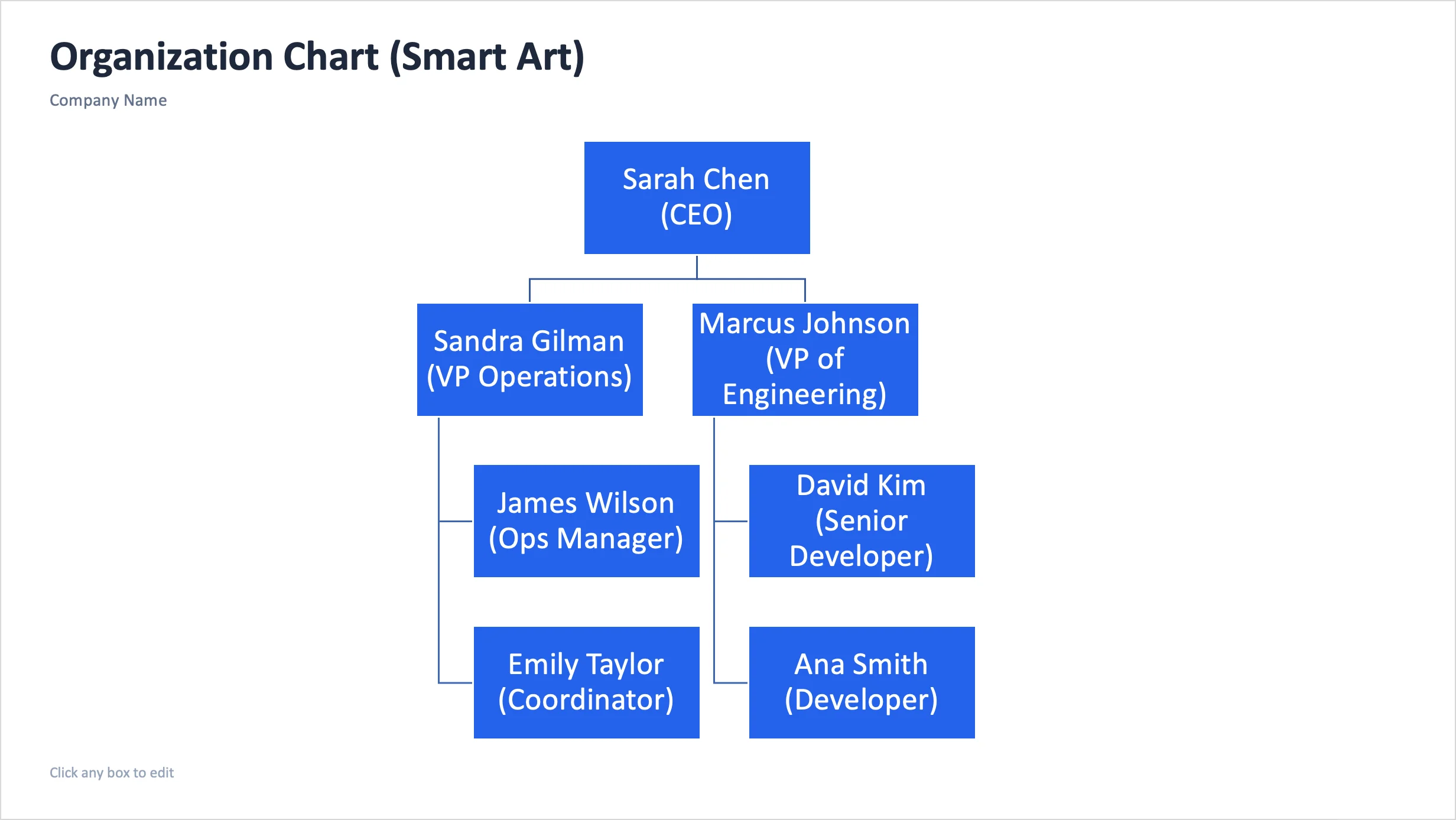
Microsoft recommends adding the boxes before polishing their text. SmartArt keeps reworking the layout as the hierarchy grows, and typography perfected on box 3 rarely survives box 23.
To add a person from the ribbon, select the nearest box and open SmartArt Design > Add Shape. Use Add Shape Below for a direct report, Add Shape Before or Add Shape After for a peer, and Add Shape Above for a new level above the selected box. Add Assistant is available in organization chart layouts when you actually need that role.
To remove a box, select its border and press Delete.
Change the hierarchy and layout
Use the Text Pane as an outline for quick structural edits, or use Promote and Demote on the SmartArt Design tab.
If one manager has many direct reports, select the manager's box and open SmartArt Design > Layout. Microsoft provides Standard, Both, Left Hanging, and Right Hanging arrangements for organization chart layouts. The choice affects the boxes beneath that manager.
SmartArt can also show a dotted relationship by formatting a selected line and choosing a dash type. Decide what that line means in your organization and explain it in the slide.
Build with shapes and connectors
Use individual shapes when the slide needs precise placement or styling that SmartArt resists.
- Choose Insert > Shapes and draw the first card.
- Add the person's name and title inside the shape.
- Finish its fill, outline, type, and size before duplicating it.
- Duplicate the card for the remaining people and arrange the rows.
- Add connectors from Insert > Shapes > Lines. Snap each connector to both shapes so it follows when a card moves.
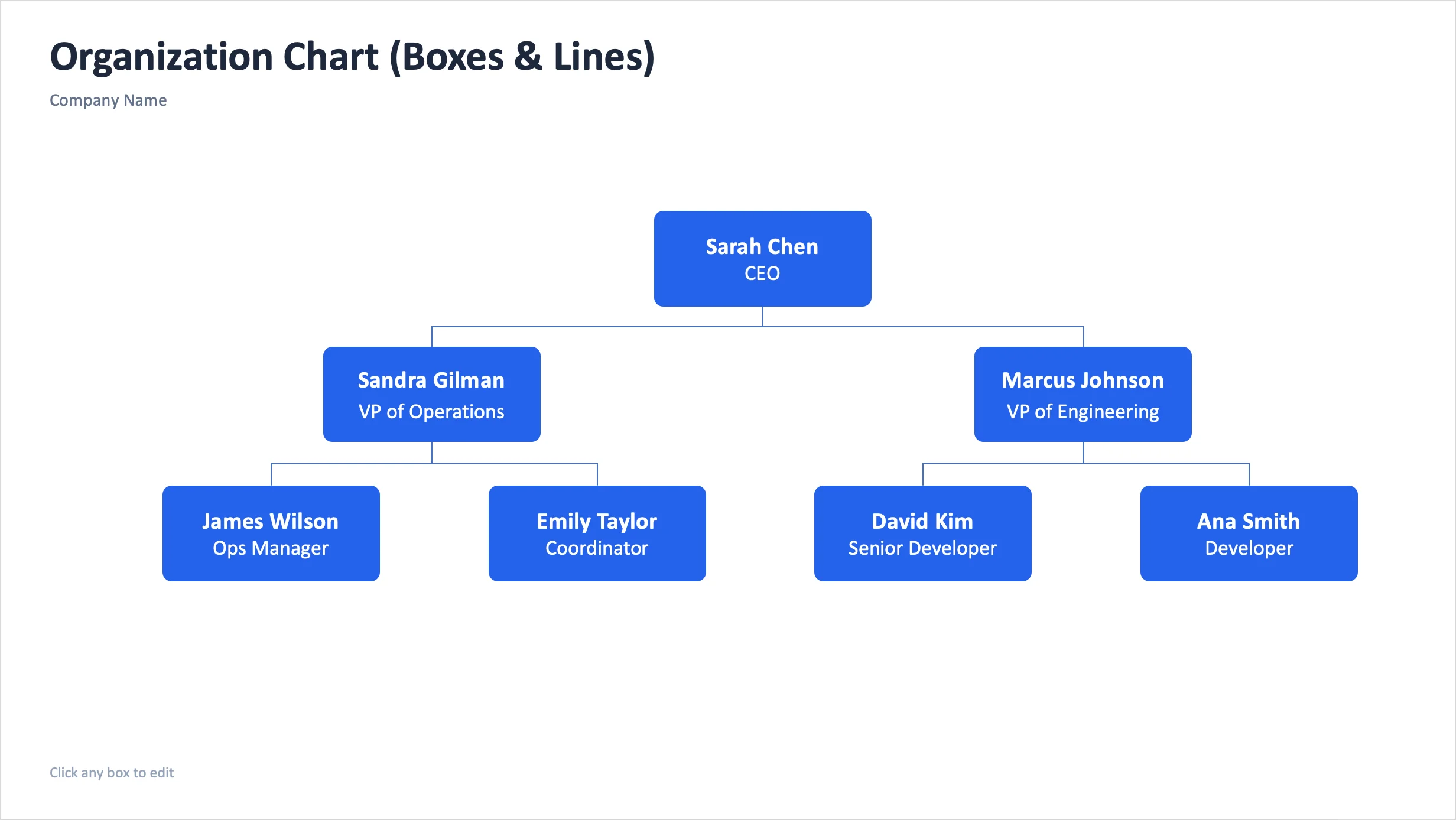
A plain line can look connected while remaining independent. A connector attaches to shapes. Move a test card before you build the whole chart and confirm that the line follows it.
Manual shapes make local edits easy, but PowerPoint will not recalculate the org chart for you. Moving someone to a new manager means reconnecting and repositioning the affected shapes yourself.
Convert SmartArt to shapes only when you mean it
In desktop PowerPoint, select the SmartArt graphic and choose SmartArt Design > Convert > Convert to Shapes. This lets you work with the pieces as shapes, which is useful for detailed animation and local formatting.
The conversion is one-way. Microsoft says the shapes cannot be converted back to SmartArt. It does not lock the chart or protect it from edits. Keep a copy of the original SmartArt slide if you may need its automatic hierarchy controls later.
Start from a spreadsheet in Org Chart Studio
If the roster already lives in Excel or CSV, import it into Studio rather than retyping it into the Text Pane:
- Prepare and import the spreadsheet.
- Review unmatched managers and the resulting reporting lines.
- Adjust the chart's theme, content, and layout.
- Sign in when Studio asks. Guests must sign in before the Export dialog opens. Signing in does not buy a pass.
- Open Export and choose the output for the next job.
Choose PowerPoint when recipients need to edit cards, text, and presentation objects. Studio's PPTX output uses editable slide shapes rather than one flat chart image. Cards may contain several grouped drawing objects, and connectors are separate lines, so edits remain possible without pretending the file is SmartArt.
Choose PNG when the chart should behave as one image on a slide. Choose PDF when you need a document or print handoff. A pass is required for PowerPoint and PDF; an eligible PNG can be exported free with a watermark. See the current watermark and pass rules.
Check the downloaded PPTX in the PowerPoint version that will present it. Fonts, line routing, and unsupported drawing effects can vary between applications. Keep the Studio chart as the data source for the next reorganization instead of treating edits made only in the deck as synchronized data.
For Google Workspace, use the Google Slides handoff guide to choose between one fixed PNG and an editable PPTX conversion.
Free PowerPoint org chart template
The PowerPoint org chart template includes a SmartArt slide and a manual shapes slide. Use the SmartArt version when you want outline-based hierarchy changes. Use the shapes version when placement and styling matter more than automatic layout.
Frequently asked questions
How do I make an org chart in PowerPoint?
Choose Insert > SmartArt > Hierarchy > Organization Chart, then enter the hierarchy in the Text Pane. For precise placement and styling, build with shapes and connectors instead.
Can PowerPoint create an org chart from Excel data?
SmartArt accepts text pasted into its Text Pane, but it does not provide Studio's column-mapping and reporting-review workflow. Import the XLSX or CSV into Studio when you need to map names, IDs, managers, titles, and departments before exporting a PPTX.
Can I edit a Studio PowerPoint export?
Yes. Studio exports editable PowerPoint shapes and text rather than a single chart image. It is not SmartArt, and complex cards can be groups of several objects. Open the result and check it before presenting.
What happens when I convert SmartArt to shapes?
PowerPoint breaks the SmartArt into individual shapes. You cannot convert those shapes back to SmartArt, so keep an original copy if you still need SmartArt's hierarchy controls.